Key Concepts
Sending your message is included in your plan. You only pay for qualifying acknowledgments.
A qualifying acknowledgment: the member tapped the WilDi button on your message and it passed the billing rules.
A message nobody acknowledges costs you nothing.
Target exact routes, areas, and locations.
Budget Management
Choose any monthly budget. You control how much you spend.
Automatic delivery rate adjustments for even spend.
Set a future start date for your campaigns.
See projected deliveries and spend before you commit.
Delivery Types Explained
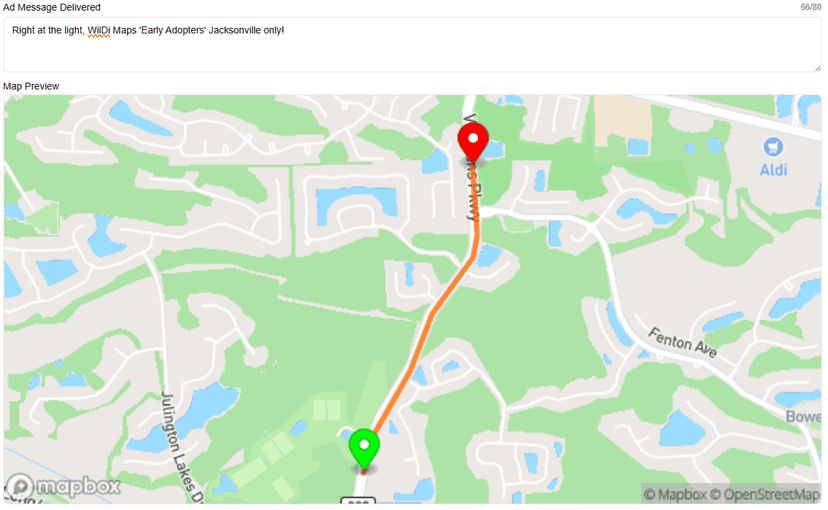
A stretch of road between two pins. Members who travel it during your window receive your message; you pay only for qualifying acknowledgments.
- Drive-home routes
- Main-street visibility
- Direction-specific routing
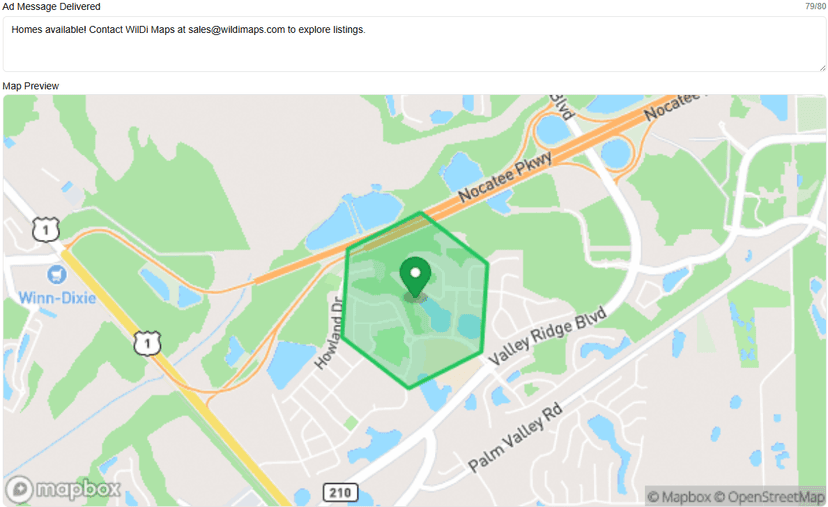
A hexagon on the city grid. Saturate a neighborhood, a district, or an area around your business. Members receive your message when they enter it.
- Around your business
- Event venues
- Competitor-adjacent areas
Market-wide delivery. Active members in the market you select can receive your message during your window. The network is live in Jacksonville today.
- Brand awareness
- App installs & URL routes
- Product launches

Browse by Category
Find detailed guides and tutorials organized by topic
What WilDi Golf costs
An ongoing course (no end date) is $599 per month for each named course, however many holes it has, paid by card as a month-to-month subscription that auto-renews until you cancel, or $5,750.40 for a year paid upfront (20% off $7,188), renewing yearly. Build your setup free. It goes live when you pay. You can turn off auto-renew any time: the course keeps running to the end of the month or year already paid, and you are not charged again. A paid month or year is not refunded, except for a service failure under the Terms. Card, invoices and cancelling are under Manage billing in the builder. A dated golf tournament is $599 per started 30-day block per named course/event, paid once upfront for the full dated event, with required start and end dates and no subscription or automatic renewal. It is a flat fee paid by the course or organizer: nothing on the course is billed per player, per message or per tap. Your sponsors pay you for their holes; WilDi never bills a sponsor.
How golfers join
Golfers install the WilDi Maps app and type the event code from your tee sign, or scan its QR code. A golfer already on the course is asked to join when they open the app. Golfers are never paid and never charged.
Print an app QR poster
Print a free poster at wildimaps.com/app/poster?for=golf for the first tee, pro shop or cart barn. Golfers scan its QR code to get the free WilDi Maps app on iPhone or Android. From your course's page in the dashboard, Print app poster adds your event code under the QR.
Running your course
Sign in at wildimaps.com/events/dashboard. Draw your holes once, add a sponsor to each, upload a roster, post today's conditions, tag your cart and grounds crew, and message golfers on the course or off it. The live console shows phones on the course hole by hole.
Your sponsor report
For each sponsor message: how many attendees received it, how many opened it, taps by kind, and visits to each sponsor's address, including repeat visitors. A visit is counted, not credited to the message as its cause. Counts of phones running the app, never people. Download it as a CSV or print it.
What an event costs
By the attendance you expect, each covering one venue (a single connected property) for up to 7 days, paid once through Stripe: Small (up to 500) $499, Standard (up to 2,500) $999, Large (up to 10,000) $2,499; over 10,000, stadiums and multi-day festivals by quote. Pick the size you expect. Paying runs the event: sponsor messages start 2 hours before it begins and stop when it ends. For a longer run, duplicate the event for the next week; your map and sponsor messages come with it.
Inviting sponsors
Each sponsor gets its own login from your invitation, writes its own sponsor message and submits it. Nothing runs until you approve it. Your sponsors pay you under your own arrangement.
Before and after the event
We email you 12 hours before the start saying whether it is paid and running. After the event, reports show visits to each sponsor for 30 days, and each sponsor gets its results by email.
Print an app QR poster
Print a free poster at wildimaps.com/app/poster?for=event for the gate, booths or check-in table. Attendees scan its QR code to get the free WilDi Maps app on iPhone or Android. From your event's page in the dashboard, Print app poster adds your event code under the QR.
Pause or stop at any time
Pause an event from its page and run it again when you are ready. Nothing is delivered while it is paused or after it ends.
Creating your account
Sign up at /signup, choose your account type (individual or business), and complete the onboarding process to set up your business profile.
Understanding Verified Delivery
Unlike CPM advertising, you pay only for qualifying acknowledgments. A delivery on its own is free, like an impression. A Verified Delivery is a qualifying acknowledgment: the member tapped the WilDi button on your message and the acknowledgment passed the billing rules. It is the only thing you pay for. It records an acknowledgment, not attention, interest, a visit or a purchase, and using your special is separate. In older app versions the button says Claim or Got it.
Navigating the Dashboard
Your dashboard shows Verified Deliveries (qualifying acknowledgments, the unit you are billed in), Attributed Visits (later visits associated with your messages, not proof they caused them) and Total Spend. Use the time filters (Current Month, Previous Month, All-Time) to view different periods.
Completing your business profile
Go to Settings > Business Profile to add your business name, address, industry, and contact information. This helps us optimize your advertising experience.
What is a Tunnel?
A Tunnel is a stretch of road between two pins. Members who travel it during your window receive your message, and you pay only for qualifying acknowledgments. Tunnels are shared, so more than one business can run the same road. Ideal for drive-home traffic, main streets and busy routes.
What is a Zone?
A Zone is a hexagon on the map, about 0.28 square miles, and it is exclusive: one business per zone. Members receive your message when they enter it, and you pay only for qualifying acknowledgments.
What is a Background?
A Background is a delivery window with no area limit, or one area you choose. Members who are moving during your time slot receive your message; the network is live in Jacksonville today. Ideal for app installs, brand awareness and announcements.
Choosing the right delivery type
Use Tunnels to run a road, Zones to hold a neighborhood to yourself, and Backgrounds to reach the network during a time window. You can mix all three in one campaign.
Messages sent
Messages sent counts how many times your message was sent to a member's phone. A send is an attempt, not a confirmed delivery or a view, and it costs you nothing. You only pay for Verified Deliveries.
What are Verified Deliveries?
Verified Deliveries count qualifying acknowledgments: a member tapped the WilDi button on your message and the acknowledgment passed the billing rules. This is the only thing you pay for. An acknowledgment is not a measure of attention, a visit or a purchase.
Cost Per Verified Delivery (CPVD)
Your average cost for each Verified Delivery, that is, each qualifying acknowledgment: Total Spend divided by Verified Deliveries.
Geographic Reach Map
The map view shows where your deliveries are firing. Toggle between Markers, Heatmap, and Cluster views. The legend shows Tunnels (blue), Zones (purple), Backgrounds (green), and member taps: URL Click (teal, a website tap), Nav Click (orange, directions requested), Call Tap (yellow), Email Tap (pink), Nav Destination (red, the address directions were requested to). Directions requested does not mean the member arrived.
Delivery by Time of Day
This chart shows when your ads are being delivered throughout the day, helping you see the times of day your messages go out.
Delivery by Location
See which specific streets, areas, and city-wide campaigns are generating the most verified deliveries.
Understanding active campaign areas
Your active campaign areas are the tunnel, zone, and background ads included with your funded plan, listed under Manage Ads. Your plan controls how many tunnels and zones can be active; background ads are available wherever the plan permits them.
Adding a campaign area
Open Manage Ads from the setup card on your dashboard. From there you can create and manage tunnel, zone, and background ads in one place.
Managing your subscription
View your current plan, active campaign areas, and billing details in Settings > Subscription. You can upgrade, modify, or cancel your subscription here.
How billing works
Your funded wallet pays only for Verified Deliveries (qualifying acknowledgments) at your plan's published rates. Creating another permitted ad does not add a separate per-ad charge or checkout.
What is Ad Budget?
Ad Budget is your monthly advertising spend limit. You set the amount, and our system ensures your ads are delivered evenly throughout the month. WilDi will not spend more than your budget without your approval.
How do I set up my budget?
You have two options: (1) Monthly Auto-Refill: set up automatic monthly payments that add to your balance on the 1st of each month. You can choose to pay a prorated amount for the current month. (2) One-Time Add Funds: make individual payments to add funds at any time. Both options share a single balance pool that rolls over indefinitely.
What is Smart Pacing?
Smart Pacing automatically adjusts your ad delivery rate to spread your budget evenly across the month. If you're behind on spend, we'll increase delivery. If you're ahead, we'll slow down. This ensures consistent visibility without burning through your budget too quickly.
How does the throttle rate work?
The throttle rate controls how frequently your ads are shown. A rate of 1.0 means normal pacing. Higher rates (like 2.0 or 3.0) mean more frequent delivery to catch up on spending. Lower rates (like 0.5) mean slower delivery when you're ahead of target. The system adjusts this automatically every hour.
Can I schedule when my ads start?
Yes. When setting up your budget, you can choose a custom start date. Your ads won't begin delivering until that date arrives. This is perfect for planning seasonal promotions, grand openings, or coordinated marketing campaigns.
How do I add more funds?
Go to Dashboard > Add Funds to add more funds anytime. Funds are added to your balance immediately and roll over indefinitely. They never expire. This is great for boosting visibility during promotions or busy periods.
What is the Delivery Forecast?
The Delivery Forecast shows you projected ad performance based on your current budget and pacing. You'll see estimated daily deliveries, projected spend rate, and when your budget is expected to run out. Check it in your Dashboard to plan ahead.
What happens when my budget runs out?
When your budget is depleted, ad delivery pauses until the next billing cycle or until you top up. You'll receive low-budget alerts when you're running low, giving you time to add more funds if needed.
What are the different spend modes?
Spend modes control how your budget is distributed: 'Month' spreads evenly across 30 days, 'Week' across 7 days (faster spend), 'Day' spends within 24 hours (fastest), and 'Custom' lets you set a specific end date. Choose based on your campaign goals.
How do I view my budget status?
Your budget status is always visible in the Dashboard header showing remaining balance, amount spent, and days left. The Budget Controls card shows your pacing status, throttle rate, and delivery projections.
What happens if I cancel auto-refill?
If you cancel your auto-refill subscription, no further monthly charges will be made. Your existing balance remains active and continues to deliver ads until depleted. You can add more funds manually or reactivate auto-refill anytime.
Is Ad Budget the same as my subscription?
No, Ad Budget is completely separate from your subscription plan. Your subscription covers the platform fee and ad inventory (streets, areas, city-wide). Ad Budget is your separate advertising spend for verified deliveries. They have different billing cycles and payment methods: ad budgets use one-time charges, not recurring subscriptions.
Updating your business profile
Go to Settings > Business Profile to update your business name, address, phone, industry type, business size, and other details.
Managing your account
Access Settings from the dashboard header to view your email, subscription status, and account details.
Changing your password
Use the forgot password flow from the login page, or contact support to reset your password.
Signing out
Click 'Sign Out' in the dashboard header to securely log out of your account.
Contacting support
Visit /contact/support to submit a support ticket. Include your name, email, priority level, category, and a detailed description of your issue.
Sales inquiries
For sales questions, pricing discussions, or enterprise plans, visit /contact/sales to speak with our sales team.
Response times
We reply within one business day. Urgent issues are handled as quickly as possible.
Quick Links
For signed-in advertisers. Each link asks you to sign in first.
Still need help?
Can't find what you're looking for? Our support team is here to help.